Adding Content
To add in your content we use Blocks.
You can locate all available blocks via the + buttons, as shown in the screenshot below (the + on the right will open a small window with frequently used blocks; you can select browse all to open the full list).

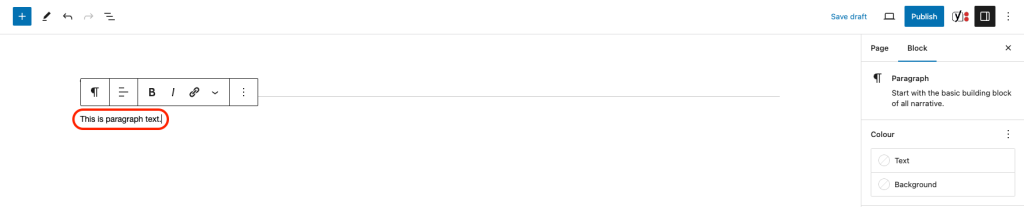
Paragraph
- Simply click on the content area and begin to type.
Heading
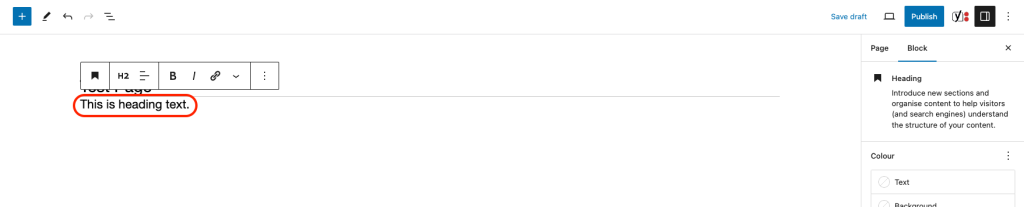
- Click on the +, using the search bar type in Heading and select this (the content area will have changed to suit this selection).
- Begin to type your heading text within the content area.
- Using the hovering bar above your text, you can alter the sizing by clicking on H2.
Media & Text
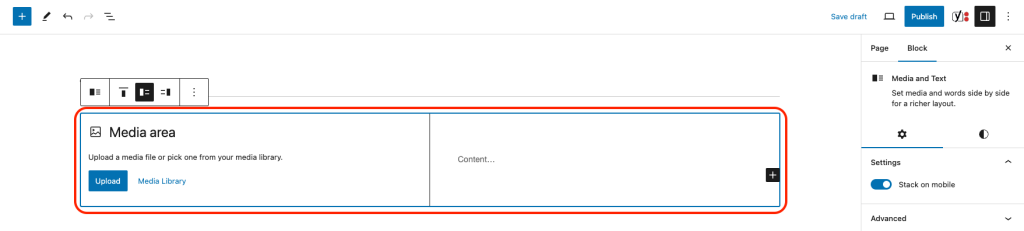
- Click on the +, using the search bar type in Media & Text and select this (the content area will have changed to suit this selection).
- The content area will appear to split in two, one side with a media area and the other with text.
- To use the media area, click on either upload (you will be able to select an image from your computer files) or media library (you will be able to select an image from those already uploaded to the site).
- For your text area, you can start typing to add your content.
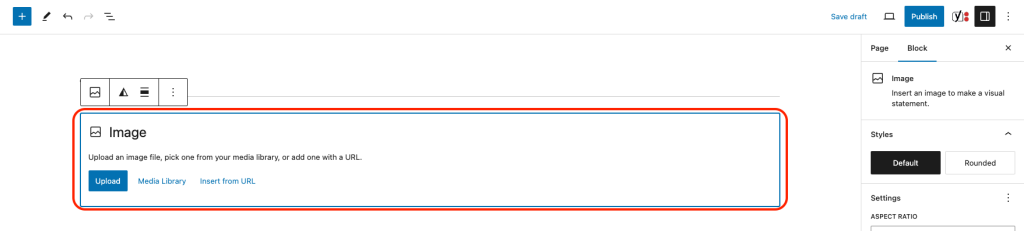
Image
- Click on the +, using the search bar type in Image and select this (the content area will have changed to suit this selection).
To install your image, click on either upload or media library. - You can use the white dots surrounding your image to resize as required.
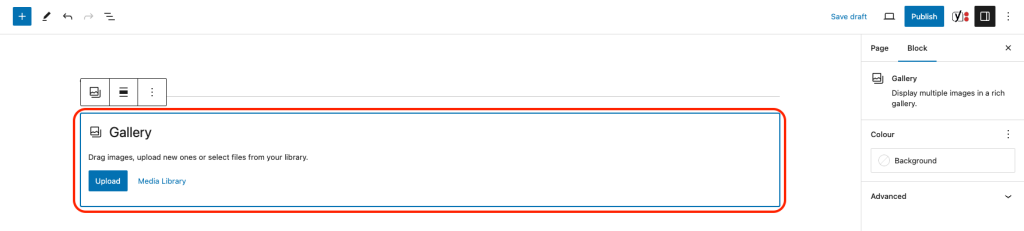
Gallery
- Click on the +, using the search bar type in Gallery and select this (the content area will have changed to suit this selection).
- To install your image, click on either upload or media library.
- You can use the white dots surrounding your image to resize as required.
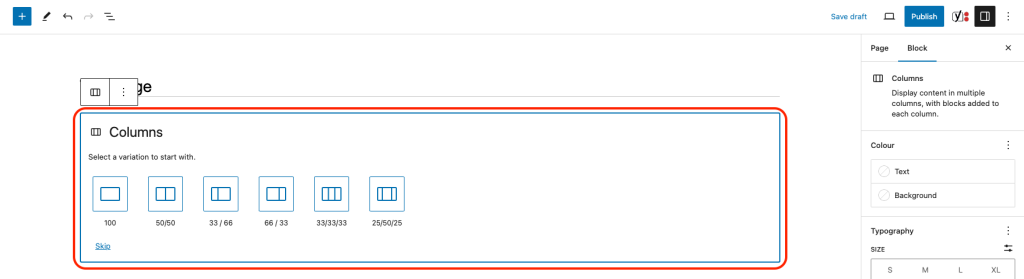
Columns
- Click on the +, using the search bar type in Columns and select this (the content area will have changed to suit this selection).
- There are predefined options for the column size, 50/50 will split your page in half exactly etc.
- Using the + in each column, you can then add in blocks to each column.
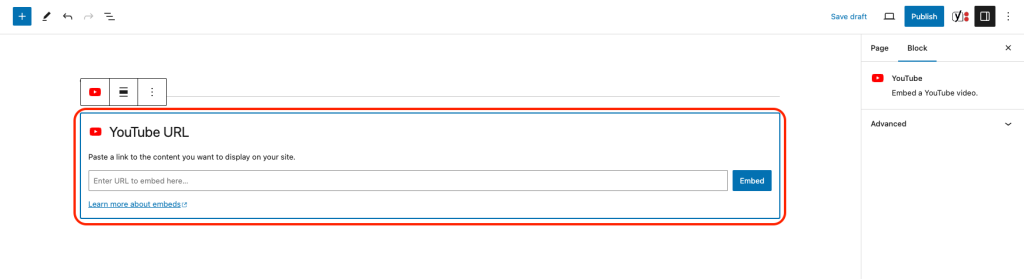
YouTube or Vimeo
- Click on the +, using the search bar type in YouTube or Vimeo (choose the block that your video has been uploaded to).
- Go to the platform and locate your video, click on share and you will be provided with an embed link.
- Paste this embed link within the field provided and select embed.
Buttons
- Click on the +, using the search bar type in Buttons and select this (the content area will have changed to suit this selection).
- Click on the button, here you are installing your button label. Simply start to type directly into the button.
- Once labelled, within the hovering bar above your button, click on the link icon, this will display a field where you can install your link.
- Click the arrow to confirm your URL.

All Blocks
- There are many blocks available to use. Should you wish to see the full list of blocks available to you, click on the + located in the top left corner.